Showing posts with label WPF. Show all posts

Friday, March 18, 2016

Measuing latency with HdrHistogram

I had the pleasure last year to meet with Gil Tene, an authority on building high performance software and specifically high performance JVM implementations. He gave a brilliant presentation at React San Francisco and then again at YOW in Australia on common mistakes made when measuring performance. He he explained that measuring latency is not about getting a number, but identifying behavior and characteristics of a system.

Often when we set out to measure the performance of our software we can be guided by NFR (Non-Functional Requirements) that really don't make too much sense. More than once I have been presented with a requirement that the system must  process x requests per time-period e.g 5 messages per second. However as Gil points out this single number is either unreasonable, or misleading. If the system must always operate in a state to support these targets then it may be cost prohibitive. This requirement must also define 100% up-time. To work around that, some requirements specify that the mean response time should be y. However this is potentially less useful. By definition what we are really specifying is the 50% of requests must see worse performance than the target.

A useful visualization for pointing out the folly of chasing a mean measurement is illustrated below.
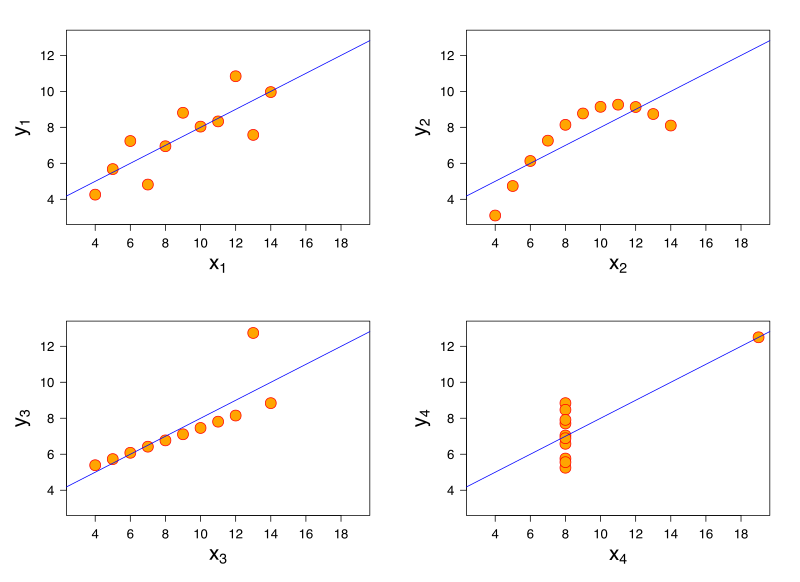
File:Anscombe's quartet 3.svg
[Source - https://en.wikipedia.org/wiki/Anscombe%27s_quartet]

All of these charts have the same mean value, but clearly show different shapes of data. If you measuring latency in your application and were targeting a mean value, you may be able to hit these targets but still have unhappy customers.

When discussing single value targets, a mean value can be thought of as just the 50th percentile. In the first case the requirement was for the 100th percentile.

Perhaps what is more useful is to measure and target several values. Maybe the 99th percentile plus targets at 99.9% and 99.99% etc is what you really are looking for.

Measuring latency with histograms

Instead of capturing a count and a sum of all latency recorded to then calculate a mean latency, you can capture latency values and assign them to a bucket. The assignment of this value to a bucket is to simply increment the count of that bucket. This now allows us to analyse the spread of latency recordings.

The example of a histogram from Wikipedia shows how to represent heights by grouping into buckets of 5cm ranges. For each value of the 31 Black Cheery Trees measured, the height is assigned to the bucket and the count for that bucket increased. Note that the x axis is linear.
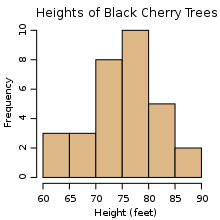
An example histogram of the heights of 31 Black Cherry trees

A naive implementation of a histogram however, may require you to pre-plan your number and width of your buckets. Gil Tene has helped out here by creating an implementation of a histogram that specifically is design for high dynamic ranges, hence its name HdrHistogram.

When you create an instance of an HdrHistogram you simply specify
  1. a maximum value that you will support
  2. the precision you want to capture as the number of significant digits
  3. optionally, the minimum value you will support
The internal data structures of the HdrHistogram are such that you can very cheaply specify a maximum value that is an order of magnitude larger than you will expect, thus giving you enough headroom for your recorded values. As the HdrHistogram is designed to measure latency a common usage would be to measure a range from the minimum supported value for the platform (nanoseconds on JVM+Linux, or ticks on .NET+Windows) up to an hour, with a fidelity of 3 significant figures.


For example, a Histogram could be configured to track the counts of observed integer values between 0 and 36,000,000,000 while maintaining a value precision of 3 significant digits across that range. Value quantization within the range will thus be no larger than 1/1,000th (or 0.1%) of any value. This example Histogram could be used to track and analyze the counts of observed response times ranging between 1 tick (100 nanoseconds) and 1 hour in magnitude, while maintaining a value resolution of 100 nanosecond up to 100 microseconds, a resolution of 1 millisecond(or better) up to one second, and a resolution of 1 second (or better) up to 1,000 seconds. At it's maximum tracked value(1 hour), it would still maintain a resolution of 3.6 seconds (or better).

Application of the HdrHistogram

When Matt (@mattbarrett) and I presented Reactive User Interfaces, we used the elements of drama and crowd reaction to illustrate the differences between various ways of conflating fast moving data from a server into a client GUI application. To best illustrate the problems of flooding a client with too much data in a server-push system, we used a modestly powered Intel i3 laptop. This worked fairly well in showing the client application coming to its knees when overloaded. However it also occasionally showed Windows coming to its knees too, which was a wee bit too much drama to have on stage during a live presentation.

Instead we thought it better to provide a static visualization of what was happening in our system when it was overloaded with data from the server. We could then contrast that with alternative implementations showing how we can perform load-shedding on the client. This also meant we could present with a single high powered laptop, instead of bringing the toy i3 along with us just to demo.

We added a port of the original Java HdrHistogram to our .NET code base. We used it to capture the latency of prices from the server, to the client, and then the additional latency for the client to actually dispatch the rendering of the price. As GUI applications are single threaded, if you provided more updates than the GUI can render, there are two things that can happen:

  • updates are queued
  • updates are conflated
What you do in your client application depends on your requirements. Some systems will need to process every message. In this case they may choose to just allow the updates to be queued. Other systems may allow updates to be conflated. Conflation is the act of taking many and reducing to one. So for some systems, they maybe able to conflate many updates and average them or aggregate them. For other systems, it may only be the last message that is the most important, so the conflation algorithm here would be to only process the last message. Matt discusses this in more detail on the Adaptive Blog.

In the demo for ReactiveTrader we demo queuing all updates and 3 styles of conflation. When we applied the HdrHistogram to our code base, we were quick to see we actually had a bug in our code base.


We had two problems. The first problem was an assumption that what worked for Silverlight, would also work for WPF. As WPF has two threads dedicated to presentation (a UI thread and a dedicated Render thread), we were actually only measuring how long it took for us to put a price on another queue! You can see that the ObserveLatest1 and ObserverLatest2 (red and yellow) lines show worse performance than just processing all items on the dispatcher. I believe this is due to us just doing more work to conflate before sending to the render thread. Unlike in Silverlight, once we send something to the Render thread in WPF we can no longer measure the time taking to actually render the change. So our measurements here were not really telling us the full story.

The second problem we see is that there was actually a bug in the code we copied from our original silverlight (Rx v1) code. The original code (red line) accidentally used a MultipleAssignmentDisposable instead of a SerialDisposable. The simple change gave us the improvements seen in the yellow line.

We were happy to see that the Conflate and ConstantRate algorithms were measuring great results, which were clearly supported visually when using the application.


To find out more about the brilliant Gil Tene
I am currently working on the final details of a complete port of the original Java HdrHsitogram to .NET. You can see my work here - https://github.com/LeeCampbell/HdrHistogram.NET

Wednesday, May 25, 2011

Rx code from Perth Presentation

Sorry about the delay in getting this code up. For those who could not make it, my part of the presentation did a bit of an intro and then discussed the testability of Rx and the easy way to deal with streaming data such as pricing in a financial industry.

RxSamplesGalleryScreenShot

RxSamplesTWAPChartScreenShot

The key samples from my half of the presentation that raised some interest was the testability of the Photo Gallery View model. The Gallery ViewModel was effectively this

/// <summary>
/// Tested Rx implementation of the ViewModel
/// </summary>
public sealed class RxPhotoGalleryViewModel : INotifyPropertyChanged
{
    public RxPhotoGalleryViewModel(IImageService imageService, ISchedulerProvider scheduler)
    {
        IsLoading = true;
        var files = imageService.EnumerateImages()
                                .ToObservable();

        files
            .SubscribeOn(scheduler.ThreadPool)
            .ObserveOn(scheduler.Dispatcher)
            .Subscribe(
                imagePath =>
                {
                    Images.Add(imagePath);
                },
                () =>
                {
                    IsLoading = false;
                });
    }

    private readonly ObservableCollection<string> _images = new ObservableCollection<string>();
    public ObservableCollection<string> Images
    {
        get { return _images; }
    }

    private bool _isLoading;
    public bool IsLoading
    {
        get { return _isLoading; }
        set
        {
            if (_isLoading != value)
            {
                _isLoading = value;
                InvokePropertyChanged("IsLoading");
            }
        }
    }

    #region Implementation of INotifyPropertyChanged

    public event PropertyChangedEventHandler PropertyChanged;

    public void InvokePropertyChanged(string propertyName)
    {
        PropertyChangedEventHandler handler = PropertyChanged;
        if (handler != null) handler(this, new PropertyChangedEventArgs(propertyName));
    }

    #endregion
}

Except from the constructor, there is really just two properties that expose change notification for the WPF binding engine. Now the code in the constructor is demo-quality in the sense that it is not good practice to do so much work in the constructor. Maybe this would be better

public sealed class RxPhotoGalleryViewModel
{
    private readonly IImageService _imageService;
    private readonly ISchedulerProvider _scheduler;

    public RxPhotoGalleryViewModel(IImageService imageService, ISchedulerProvider scheduler)
    {
        _imageService = imageService;
        _scheduler = scheduler;
    }

    public void Start()
    {
        IsLoading = true;
        var files = _imageService.EnumerateImages()
                                .ToObservable();

        files
            .SubscribeOn(_scheduler.ThreadPool)
            .ObserveOn(_scheduler.Dispatcher)
            .Subscribe(
                imagePath => Images.Add(imagePath),
                () =>IsLoading = false);
    }
//....
}

The test fixture is fairly simple. We pass in a mock implementation of the IImageService and the TestSchedulerProvider similar to the one shown in Rx Part 8 – Testing Rx.

[TestClass]
public class RxPhotoGalleryViewModelTests
{
    private Mock<IImageService> _imageSrvMock;
    private TestSchedulderProvider _testSchedulderProvider;
    private List<string> _expectedImages;

    [TestInitialize]
    public void SetUp()
    {
        _imageSrvMock = new Mock<IImageService>();
        _testSchedulderProvider = new TestSchedulderProvider();

        _expectedImages = new List<string> { "one.jpg", "two.jpg", "three.jpg" };
        _imageSrvMock.Setup(svc => svc.EnumerateImages())
                        .Returns(_expectedImages);

    }

    [TestMethod]
    public void Should_add_ImagesServiceResults_to_Images()
    {
        //Arrange
        // done in setup

        //Act
        var sut = new RxPhotoGalleryViewModel(_imageSrvMock.Object, _testSchedulderProvider);
        _testSchedulderProvider.ThreadPool.Run();
        _testSchedulderProvider.Dispatcher.Run();

        //Assert
        CollectionAssert.AreEqual(_expectedImages, sut.Images);
    }

    [TestMethod]
    public void Should_set_IsLoading_to_true()
    {
        //Arrange
        // done in setup

        //Act
        var sut = new RxPhotoGalleryViewModel(_imageSrvMock.Object, _testSchedulderProvider);
            
        //--NOTE-- note the missing TestScheduler.Run() calls. This will stop any observable being processed. Cool.

        //Assert
        Assert.IsTrue(sut.IsLoading);
    }

    [TestMethod]
    public void Should_set_IsLoading_to_false_when_completed_loading()
    {
        //Arrange
        // done in setup

        //Act
        var sut = new RxPhotoGalleryViewModel(_imageSrvMock.Object, _testSchedulderProvider);
        _testSchedulderProvider.ThreadPool.Run();
        _testSchedulderProvider.Dispatcher.Run();

        //Assert
        Assert.IsFalse(sut.IsLoading);
    }
}

As we now control the scheduling/concurrency we don't have to try to do anything fancy with Dispatchers,  BackgroundWorkers, ThreadPools or Tasks which are very difficult to perform unit testing on. Check out the pain that I went through to test responsive WPF apps in this post on Testing Responsive WPF complete with DispatcherFrame and Thread.Sleep(300) in my tests Sad smile

If you want the running code you can either pull the code down via SVN by following this http://code.google.com/p/rx-samples/source/checkout or you can download the zip.

The PowerPoint presentation is here

You may also be interested in the Design Guidelines produced by the Rx team at Microsoft and also where to get the latest version of Rx

Back to the contents page for Reactive Extensions for .NET Introduction

Wednesday, May 12, 2010

MergedDictionaries performance problems in WPF

I don’t normally like to blatantly plagiarise other people’s comments, but this seems to be a little know bug that sounds like it should be shared.

A colleague of mine emailed our internal tech list the following email

I strongly urge everyone working with WPF to use this or at least benchmark it in your own applications if you use ResourceDictionaries.MergedDictionaries. I consider this to be a huge problem in WPF. I’m not sure if it exists in Silverlight, but I would assume it does.

I was just debugging a very long render delay in some WPF code and I came across this little tidbit:

http://www.wpftutorial.net/MergedDictionaryPerformance.html

The quote of interest is: “Each time a control references a ResourceDictionary XAML creates a new instance of it. So if you have a custom control library with 30 controls in it and each control references a common dictionary you create 30 identical resource dictionaries!”

Normally that isn’t a huge problem, but when you consider the way that I personally (and have suggested to others) that they organize their resources in Prism projects it gets to be a **serious** problem. For example, let’s say we have this project structure:

/MyProject.Resources
       /Resources
                -Buttons.xaml
                -DataGrid.xaml
                -Global.xaml
                -Brushes.xaml
                -WindowChrome.xaml
                -Icons.xaml
 
/MyProject.Module1
      /Resources
                -Module1Resources.xaml  (References all Dictionaries in /MyProject.Resources/Resources/*)
      /Views
                -View1.xaml
                -View2.xaml
      
/MyProject.Module2
      /Resources
                -Module2Resources.xaml   (References all Dictionaries in /MyProject.Resources/Resources/*)
      /Views
                -View1.xaml
                -View2.xaml
      
/MyProject.Shell
      /Resources
                -ShellResources.xaml   
      /Views
                -MainShell.xaml

If in your views you reference the module-level ResourceDictionary (which helps for maintainability and modularity) then every time you create an instance of View1.xaml for example, you would have to parse all the ResourceDictionaries in /MyProject.Resources/Resources/* every time. This isn’t really a memory concern but it is a huge performance concern. There can potentially be thousands of lines of XAML code to parse and the time really does add up.

I recently switched all of the MergedDictionary references:

<ResourceDictionary>
    <ResourceDictionary.MergedDictionaries>
        <ResourceDictionary Source=”/SomeDictionary.xaml/>
    </ResourceDictionary.MergedDictionaries>
</ResourceDictionary>

To use the attached SharedResourceDictionary which shadows the Source property and keeps a global cache of all ResourceDictionaries parsed:

<ResourceDictionary>
    <ResourceDictionary.MergedDictionaries>
        <SharedResourceDictionary Source=”/SomeDictionary.xaml/>
    </ResourceDictionary.MergedDictionaries>
</ResourceDictionary>

And I saw a performance increase of almost two orders of magnitude … From almost 6000ms to 200ms. I’ve attached this code; I used the basic sample implementation in the link above so this is considered public information for client purposes.

Cheers,

Charlie

Thanks to Charlie Robbins (Lab49) for expanding on Christian’s blog post and for letting me re-print your email.

Saturday, February 13, 2010

Squeezing out performance from Charting

After my review of the charting products available currently I decided to go with the Slverlight/WPF Data Visualization project (from the WPF Toolkit). I did end up coming up with a trick to squeeze some performance out of the charts. Quite simply that charts don’t handle a lot of data very well. When you have rich data templates, animation and more than several hundred data points, performance is pretty poor. I decided that the first thing to compromise on would be animation. It is nice but I would rather speed. By turning off the animation in the charting I get a little speed up but there still is a simple truth that must be considered. If my graph is only 500px wide then why try to render more than 500 data points? This is my first step to gaining some performance; filter out data by sampling so we never try to get the chart to render more data than it ever could.

I can achieve this by creating a custom CollectionViewSource. The new sub class is simple;

  • it has a dependency property of MaxItemCount
  • on any change to the MaxItemCount or the Source we sample the data set, and save the values we want to display into a set
  • we subscribe to the Filter event and only accept an item if it is included in our sample set
public class CollectionSizeFilter : CollectionViewSource
{
    int _count;
    ICollectionView _defaultView;
    HashSet<object> _toKeep;

    public CollectionSizeFilter()
    {
        Filter += CollectionSizeFilter_Filter;
    }

    protected virtual void CollectionSizeFilter_Filter(object sender, FilterEventArgs e)
    {
        e.Accepted = _toKeep == null || _toKeep.Contains(e.Item);
    }

    protected override void OnSourceChanged(object oldSource, object newSource)
    {
        base.OnSourceChanged(oldSource, newSource);
        _defaultView = GetDefaultView(newSource);
        _count = Count(_defaultView.SourceCollection);

        LoadHashset();
    }

    public double MaxItemCount
    {
        get { return (double)GetValue(MaxItemCountProperty); }
        set { SetValue(MaxItemCountProperty, value); }
    }
    public static readonly DependencyProperty MaxItemCountProperty = DependencyProperty.Register("MaxItemCount", typeof(double), typeof(CollectionSizeFilter), new UIPropertyMetadata(1d, MaxItemCountProperty_Changed));

    private static void MaxItemCountProperty_Changed(DependencyObject sender, DependencyPropertyChangedEventArgs e)
    {
        var self = (CollectionSizeFilter)sender;
        self.LoadHashset();
    }

    private void LoadHashset()
    {
        if (_count <= MaxItemCount)
        {
            _toKeep = null;
        }
        else
        {
            _toKeep = new HashSet<object>();
            var gap = MaxItemCount - 1;
            var spacing = _count / gap;
            double nextIndex = 0d;
            int i = 0;
            foreach (var item in _defaultView.SourceCollection)
            {
                if (i >= nextIndex)
                {
                    _toKeep.Add(item);
                    nextIndex += spacing;
                }
                i++;
            }
        }
        if (View != null)
            View.Refresh();
    }

    private static int Count(IEnumerable source)
    {
        if (source == null)
        {
            return 0;
        }
        var is2 = source as ICollection;
        if (is2 != null)
        {
            return is2.Count;
        }
        int num = 0;
        IEnumerator enumerator = source.GetEnumerator();
        {
            while (enumerator.MoveNext())
            {
                num++;
            }
        }
        return num;
    }
}

To use the new “control” we just treat it like a normal CollectionViewSource but we specifiy the MaxItemCount by binding it to the width of the Chart like this.

<Controls:CollectionSizeFilter x:Key="FilteredData" 
    Source="{Binding MyData}" 
    MaxItemCount="{Binding ElementName=chart1, Path=ActualWidth}"/>

This gave some performance improvements but I thought why not follow this concept down the path a little bit more. For most data that  I want to display I am mainly interested in the trend not the minutia. So why do I try to show a data point on every pixel? I could just sample the data; for example if I have a data set of 1500 data points and a graph that is 500px wide, I get some performance gains by reducing the rendered data set to 500 data points, but why not just show one data point every say 10px? If this is acceptable for your data then you can reduce your rendered data set from 1500 down to 50 (30 times less data to render). To do this is even more simple than the code above. We just need to create and implementation of IValueConverter to do some division, a DivisionConverter.

public sealed class DivisionConverter : IValueConverter
{
    #region IValueConverter Members
    public object Convert(object value, Type targetType, object parameter, CultureInfo culture)
    {
        double numerator = ConvertToDouble(value, culture);
        double denominator = ConvertToDouble(parameter, culture);
        return numerator / denominator;
    }

    public object ConvertBack(object value, Type targetType, object parameter, CultureInfo culture)
    {
        throw new NotImplementedException();
    }
    #endregion

    private static double ConvertToDouble(object value, IFormatProvider culture)
    {
        var result = default(double);
        try
        {
            var source = value as IConvertible;
            if (source != null)
                result = source.ToDouble(culture);
        }
        catch
        {
        }
        return result;
    }
}

So now we can just extend our previous XAML to include the new converter and apply our sample size of 10.

<Controls:DivisionConverter x:Key="divisionConverter" />
<Controls:CollectionSizeFilter x:Key="FilteredData" 
    Source="{Binding MyData}"
    MaxItemCount="{Binding ElementName=chart1, Path=ActualWidth, 
        Converter={StaticResource divisionConverter}, 
        ConverterParameter=10}"/>

Putting it all together I end up with code like below. I prefer to keep my concerns near each other, so here I have defined the filters in the LineSeries Resources instead of where some may put them which is the top of the file. I would however define the key to the DivisionConverter at the top of the file or even in the App.xaml as I will probably use it in many places. Note how I use RelativeSource Binding to find the width of the parent chart.

<chartingToolkit:Chart Name="chart1">
    <chartingToolkit:LineSeries 
        Title="{Binding Title}"
        DependentValuePath="Value"
        IndependentValuePath="Date">
        <chartingToolkit:LineSeries.Resources>
            <Controls:CollectionSizeFilter 
                x:Key="FilteredBalances" 
                Source="{Binding Balances}"
                MaxItemCount="{Binding 
                        RelativeSource={RelativeSource FindAncestor, 
                        AncestorType={x:Type chartingToolkit:Chart}}, 
                        Path=ActualWidth,
                        Converter={StaticResource DivisionConverter}, 
                        ConverterParameter=10}"/>
        </chartingToolkit:LineSeries.Resources>
        <chartingToolkit:LineSeries.ItemsSource >
            <Binding Source="{StaticResource FilteredBalances}"/>
        </chartingToolkit:LineSeries.ItemsSource>
    </chartingToolkit:LineSeries>
</chartingToolkit:Chart>

You may find your millage varies with the sampling size. You may be only comfortable with small values like 3-5 or you may be more aggressive with values around 30. It is your data and you will know what is best for you. The real beauty of this is that problem of performance is a presentation problem. With some simple controls we are able to tame the problem in the presentation layer without having to compromise the purity of our ViewModels (like setting max size values that get sent to databases). Here if we resize the chart, we already have all the data so we just render more data points. Also the solution is very generic, there are no dependencies on the WPF Data Visualization assemblies so you may find other uses for them.

Monday, January 18, 2010

My WPF Charting Comparisons

I have recently been looking for some graphing/charting functionality for a home project I am working on. My requirements are fairly simple:

  1. handle data quantities in the region of thousands and tens of thousands of rows/items
  2. be able to display line charts with or without data points (there will be so many data points that they can become noise)
  3. be able to display multiple sets of data to be able to compare data
  4. free or cheap
  5. xcopy install

Now as the Charting products I wanted to compare were all going to be in WPF I assumed that these requirements were just a given but apparently not, so let me specify them as well

  1. be able to bind the data from my own view model (i.e. I don’t want to have controls littering my View Model)
  2. have the graph update as the data changes

Now to see the list of contenders:

So for the really quick review of each

WPF Toolkit Charting

This is the CodePlex project from some of the lads at Microsoft. This is presumable of a lesser quality than the rest of the Toolkit as the Charting component is in preview. The WPF Toolkit allows for great looking charts by utilising the power of WPF Styles. It is one of those balancing acts that must be difficult to make when designing software; extensibility vs. simplicity. The WPF Toolkit leans more towards the extensible option. Extending the charts to look the way you want can be done but many will find it fiddly and frustrating, but once done can be very rewarding and the Graphs can look amazing. The WPF Toolkit also utilises the power of WPF binding by allowing me to bind to my ViewModel. So it looks like a good start, however, the clear and painful problem with the WPF Toolkit is performance. When loading up even hundreds of rows/items the performance is fairly poor. When I tried to throw just over a thousand items at a Line Series the performance was completely unacceptable. One other problem I have is that I get intermittent lock ups. When updating the data, the charting code will run off into a loop and not come out of it, freezing the UI. Hmmm another cross.

Positives:

  • Extensibility allows for beautiful graphs
  • Charts bind to ViewModel
  • Free

Negatives:

  • Woeful performance
  • Random lock ups.

AmCharts

AmCharts appears to be a Charting solution aimed at the financial industry. The chart control that I thought would best fit my needs was the Stock chart. This chart had a great feature that allowed zooming on the X-axis by providing a range slider. Performance was great when I threw ~1500 items at the control. An odd problem I had was the graph would only appear once I resized my window. I think this has to do with binding to a ViewModel as the Demo does not have this problem but it also directly interacts with the control from the Code behind. I want to avoid “messing with controls” from my ViewModel. A more real problem I have is that while the performance is great, the binding seems to be a once off event. Changes to the values in my collection are not reflected by any change to the chart.

Positives

  • Good performance
  • Charts bind to ViewModel
  • Zoom functionality
  • Good samples
  • Smallest DLL size (223KB)

Negatives

  • One time data binding
  • Odd problem with Chart not rendering until i resized the window.

Visifire

VisiFire charts looked to be a great option. They were very easy to get up and running, had some good samples like the AmCharts. My first play with the Visifire charts provided me with a good looking chart. My problems came when I went to bind the Charts to my ViewModel…Visifire does not support data binding! I’m not even sure why someone would write a WPF control that does not support data binding. I wasted plenty off time writing some adapters so that I could get data binding working. Data binding is in the wish list for version 3 (how it didn't make it into the wish list for the 1st version I don’t know). Performance of Visfire was pretty good (not spectacular) and sat in between AmCharts and the hopelessly slow WPF Toolkit.

Positives

  • Easy to get up and running
  • Pretty good looking default charts
  • Moderate performance

Negatives

  • You cant bind a data series to a collection!

Dynamic Data Display

The Dynamic Data Display (aka D3) is another Microsoft project on Codeplex from a Microsoft research team in Russia. D3 authors claim outstanding performance even with massive amounts of data. Sounds like a sure fire winner! The control library also supports different types of charts to the other libraries like Maps and Isolines ( I have no idea what an isoline is). The samples show some good stuff with smooth moving animated graphs with dynamic data points. The big fail on the project is again, no data binding. All manipulation of the charts needs to be done in C# code and needs to be very imperative. There are some guys, however, who have made posts creating an extension to the controls to support data-binding. Either way, while this looked to be a good set of controls, the authors don’t appear to have followed the Pit-of-Success principle. I would go in to details, but the fact it took me hours of reading forums, looking at samples and coding to just get my Model showing on the screen. When it did get on to the screen it was fast, but didn’t update when the underlying data changed. This is a very immature set of controls but may have a bright future if the team can get some fundamentals right.

Positives

  • High performance
  • Easy to scroll and zoom data

Negatives

  • Hardest set of controls to work with. Everything has to be done in code. Authors seem to miss the point of WPF entirely. Presentation and logic feel very much couple together.
  • After all my mucking around the chart didn’t update with my changes to the data.

In summary, I am pretty disappointed with the state of all of these charting controls. What I did manage to get working to a satisfactory state was the WPF Toolkit. As the only real problem I had with the WPF Toolkit charting controls was their performance; I decided that an easy way to get some better performance out of the control was to only show as many data points as there were available pixels. If I only have 400 pixels to show my data it becomes a bit silly to try and get the graph to render 1400 data points. I created a Custom Control that extends CollectionViewSource by having a MaxItemCount property that can be set to effectively filter the amount of data the CollectionViewSource reveals to the Charting controls. The performance was better but I was able to further tweak the performance by adding a DivisionConverter to further reduce the collection size by the parameter specified (10 in my case). This means I only show a data point for every 10 pixels wide the chart is. This ended up being a great compromise….except for the random lock ups. If I play on the Chart for long enough changing the data to update the chart, eventually the program just falls in to a loop. If I can solve this bug I may have a winner on my hands. Ed:—Playing around more I may have got rid of this problem. Still pops up sometimes straight after a build, but a restart fixes it. This may be to do with my build of Win7 (pre release that I am still running). This throws the WPF Toolkit +the 2 tiny bits of filter code clearly into the lead as it can be made to look great and handle tens of thousands of rows.

If any one is interested in the code I used to test/play with each of these libraries you can find a zip of the VS2008 solution here. To see any of the spikes, just set it as the start up project and run or Right click on the project and “Debug”—> “Start new instance”. Only the MyDomain project wont run as that is the Class library that has the small part of the domain to test the charts with.

ChartingPlaygournd.zip – Source code for my tests.

Saturday, June 6, 2009

Responsive WPF User Interfaces Part 7

Creating a responsive Image control

In part 6 we discovered problems even when we follow the guidelines from this series. In this case we find that sometimes it can be the controls themselves that are the cause of the lagging interface. In part 6 it was the Image control that was to blame. I make the assumption that it was trying to perform it's bitmap decoding on my precious dispatcher thread. However not only Image controls can get ugly, Charles Petzold shows some problems you may find when using chart controls (or any Items Control) in his Writing More Efficient Items Controls article.

The first thing I wanted to do was to just sub class Image however, I personally was stumped as to how I would then create my control template for it. Next I actually only wanted to accept URIs as my source so that I can do the decoding from file to an ImageSource myself explicitly and not on the UI thread via a TypeConverter. So I want a sub class of Control with a dependency property of UriSource and then 3 read-only properties ImageSource, IsLoading and HasLoadFailed. UriSource will provide the hook to bind your file name to. ImageSource will then provide the decoded ImageSource to be displayed. IsLoading and HasLoadFailed will be there so that you can update the UI appropriate to the lifecycle of the image.

The Style and control template I came up for this design was this:

<Style TargetType="{x:Type controls:Thumbnail}">
  <Setter Property="Template">
    <Setter.Value>
      <ControlTemplate TargetType="{x:Type controls:Thumbnail}">
        <Image x:Name="ImageThumbnail"
               Source="{TemplateBinding Image}"
               HorizontalAlignment="{TemplateBinding HorizontalAlignment}"
               VerticalAlignment="{TemplateBinding VerticalAlignment}"
               MaxHeight="{TemplateBinding MaxHeight}"
               MaxWidth="{TemplateBinding MaxWidth}"
               Stretch="Uniform"
               StretchDirection="DownOnly" />
      </ControlTemplate>
    </Setter.Value>
  </Setter>
</Style>

Where I want to use the Thumbnail control I can have some XAML that hides and shows a loading indicator. This example here just shows the text "Loading Image..." but would probably have a nice animation or an indeterminate progress indicator.

<Border CornerRadius="4" BorderBrush="Silver" BorderThickness="1"
        Width="150"
        Height="150"
        Margin="10">
  <Grid>
    <local:Thumbnail x:Name="Thumbnail"
                     MaxWidth="148"
                     MaxHeight="148"
                     UriSource="{Binding}" 
                     HorizontalAlignment="Center" VerticalAlignment="Center"
                     ToolTip="{Binding}">
      <local:Thumbnail.Style>
        <Style TargetType="{x:Type local:Thumbnail}">
          <Setter Property="Visibility" Value="Visible"/>
          <Style.Triggers>
            <DataTrigger Binding="{Binding RelativeSource={RelativeSource Self}, Path=IsLoading}" Value="True">
              <Setter Property="Visibility" Value="Collapsed"/>
            </DataTrigger>
          </Style.Triggers>
        </Style>
      </local:Thumbnail.Style>
    </local:Thumbnail>

    <TextBlock Text="Loading image..."
               Foreground="Gray"
               HorizontalAlignment="Center"
               VerticalAlignment="Center">
      <TextBlock.Style>
          <Style TargetType="TextBlock">
              <Setter Property="Visibility" Value="Visible"/>
              <Style.Triggers>
                  <DataTrigger Binding="{Binding ElementName=Thumbnail, Path=IsLoading}" Value="False">
                      <Setter Property="Visibility" Value="Collapsed"/>
                  </DataTrigger>
              </Style.Triggers>    
          </Style>
      </TextBlock.Style>
    </TextBlock>
  </Grid>
</Border>

Well that is the easy bit, the public API. Trust me it gets more interesting.

My gut feeling was basically take the code from reflector and use that to decode Uris to ImageSource objects, but perform the action on a background thread. Two problems here:

  1. Most of the fun code that happens when the URI is being parsed and then decoded, is internal. :-(
  2. You cant pass most sub-classes of ImageSource across threads. If you create them on one thread they cant be accessed on another thread. So this stops us blindly copying code from reflector as all that code only runs on the dispatcher thread so wont face this problem.

We do have something to work with however: WriteableBitmap.

In some vain attempt at brevity (he says in his 7th post in the series!), I will try to skip over all of the brick walls I faced and jump straight to the solution I came up with. This was a great learning experience for me, and in the spirit of a learning experience the code is fairly rough (with TODO comments still intact). I will try to build this control into a stable control but in its current state is very much demo-ware.

First thing I want to achieve was to have the decoding and if possible the reading from disk happen off the UI thread. Lets start with the easy bit; reading the file into memory. I'm going to keep that simple and just go with grabbing the file as a byte array like this

byte[] buffer = File.ReadAllBytes(UriSource);

Next I want to decode the byte array into some form of ImageSource. To do this I have used a combination of the BitmapDecoder and the WriteableBitmap. First I take the byte array and load it into a MemoryStream, and then pass the stream to the BitmapDecoder factory method Create. This will return me an instance of one of its implementations (BitmapDecoder is abstract/MustInherit). From here I make a bold assumption that we only care about the first "Frame" of the image. I believe that most formats don't support multiple frames but formats like GIF do which allows them to have animation features. Anyway, in my demo-ware code I just take the first frame.

using (Stream mem = new MemoryStream(buffer))
{
  BitmapDecoder imgDecoder = null;
  imgDecoder = BitmapDecoder.Create(mem, BitmapCreateOptions.None, BitmapCacheOption.None);

  BitmapFrame frame = imgDecoder.Frames[0];
  double scale = GetTransormScale(maxWidth, maxHeight, frame.PixelWidth, frame.PixelHeight);

  BitmapSource thumbnail = ScaleBitmap(frame, scale);

  // this will disconnect the stream from the image completely ...
  var writable = new WriteableBitmap(thumbnail);
  writable.Freeze();
  return writable;
}

From here I figure out the ratio that I want to scale it to. There doesn't seem much point in returning an 8MB image if we only want to see it as 300x300 does it? Next we request the image as what is almost our final product. We have a helper method scale the frame and return it as a BitmapSource. We can't assign this BitmapSource back to our ImageSource dependency property as they don't play nice over thread boundaries. So, the last thing we need to do is take the BitmapSource we just generated and create a WriteableBitmap from it and then call its Freeze method. This puts the WriteableBitmap in an immutable state which then makes it thread safe. Whew!

Just for reference here is the GetTransformScale method

private static double GetTransormScale(double maxWidth, double maxHeight, double currentWidth, double currentHeight)
{
  double xRatio = maxWidth / currentWidth;
  double yRatio = maxHeight / currentHeight;
  double resizeRatio = (xRatio > yRatio) ? xRatio : yRatio;
  if (resizeRatio > 1)
    resizeRatio = 1;
  return resizeRatio;
}

and the ScaleBitmap method

private static BitmapSource ScaleBitmap(BitmapSource source, double scale)
{
  if (scale > 0.9999 && scale < 1.0001)
  {
    return source;
  }
  var thumbnail = new TransformedBitmap();
  thumbnail.BeginInit();
  thumbnail.Source = source;
  var transformGroup = new TransformGroup();
  transformGroup.Children.Add(new ScaleTransform(scale, scale));
  thumbnail.Transform = transformGroup;
  thumbnail.EndInit();
  return thumbnail;
}

So all things considered, once you get over the decoding stuff and then wrestle with the various subclasses of ImageSource that play their part, its not too bad. But like I said earlier; it gets more interesting. So far we have only looked at how to decode the image, we have yet to consider how to make the call to perform the decoding. My first instinct was to make the call on any change to the UriSource property. However I may not have the MaxHeight and MaxWidth information at that point in time. This caused me much stress over when should I call this decode functionality. If no value is ever going to be set for MaxHeight or MaxWidth then I should just process the image, but if first the UriSource is set then the MaxHeight, then the MaxWidth I would end up creating 3 asynchronous calls to render 3 different sized images. This would be a disaster as it would surely end up with race conditions and most likely the wrong sized image being displayed. The other obvious problem with that is that we would be performing 3 times the work. Hmm.

My solution (and mileage may vary as I am green to concurrent programming models) was to create a stack of render requests for each instance of a Thumbnail. As a property was set then a request would be added to the stack and a request to start processing the stack would occur. Periodically while processing the image I would check to see if the current work was invalidated by any new requests to the stack. If the current request was invalid it would terminate its work. The request to start processing the stack would simply try to pop the last request from the stack and clear out all other requests (effectively ignoring stale requests). On returning from the render request it would loop back and try to pop anything new from the stack. This last part while important is very much implementation details and could vary dramatically from anything you may implement. I have just read over the code myself and I could do with some work. It is amazing what just 3months (and reading Joe Duffy's Concurrent Programming for Windows) does for your appreciation of your code.

As always the code is available for you to have a play. Open it up, pick it to pieces, use what you like. Obviously I take no responsibility for the code if you do choose to use it as this is intended on being a learning exercise. Having said that I do try to produce good code for my demos so if you do see something that is not good enough let me know.

This has been a fun series and I hope you liked it and learnt as much as I did from it.

Back to series Table Of Contents

Working version of the code can be found here

Tuesday, May 26, 2009

Responsive WPF User Interfaces Part 6

Unresponsive Controls

Sorry about the unreasonable delay between this post and the last post in this series. Interestingly readers that have been following the series have already jumped ahead to see that not all is fine even if you follow the guidance provided. 'Arne' makes a comment on the last post that he is having some problems even when he follows the guidance especially when loading a lot of images. Some of the team I work with are currently working with graphing/charting products that are great with tens and hundreds of rows of data but create an unresponsive UI when pushed to use thousands of rows of data (eg +5 years of daily stock info).

So if we are following the rules what can we do? Well let us look at a concrete problem first and for consistency let's stay with the PhotoAlbum project. For a quick refresher, we have a "ViewModel" with a property Images that is of type ObservableCollection<Uri>. The XAML snippet that displays the Images looks like this:

<ListBox ItemsSource="{Binding Images}"
         ScrollViewer.HorizontalScrollBarVisibility="Disabled">
  <ListBox.ItemTemplate>
    <DataTemplate>
      <Border Background="AliceBlue"
              CornerRadius="2"
              Width="150"
              Height="150">
        <Image Source="{Binding}"
               MaxHeight="148"
               MaxWidth="148"
               Stretch="Uniform"
               StretchDirection="DownOnly"
               HorizontalAlignment="Center"
               VerticalAlignment="Center"
               ToolTip="{Binding}" />
      </Border>
    </DataTemplate>
  </ListBox.ItemTemplate>
  <ListBox.ItemsPanel>
    <ItemsPanelTemplate>
      <WrapPanel IsItemsHost="True" />
    </ItemsPanelTemplate>
  </ListBox.ItemsPanel>
</ListBox>

Now in theory there is nothing wrong with this XAML. From a declarative programming point of view, I think it is well written (Ed: Cause I wrote it!) as it describes what we want (Items in the ListBox to be wrapped horizontally, displayed as Images within a border.

The problem with this declarative code is what most people fear with declarative code: what is actually happening under the hood? Before we trek too far, if I run the code (see example 6_UnresponsiveImages in the code example) I can select folders with small amount of small images just fine. The application runs ok. The current code becomes a problem when I point it to folders with large images. This is compounded when there are lots of those large images or when I am running on a slower/older computer.

We will quickly go off track to consider the likelihood of the large image slow computer problem. Digital cameras currently are getting cheaper and the quality is going up. Mid range cameras range between 8-12 megapixel and can have in excess of 8GB of memory.  Phones now are coming out with 5-8 megapixel cameras. If you come back and read this 12months from now, I guess you will laugh at the small sizes I refer to. Next consider the average user's computer. Rightly or wrongly, the release of vista saw very few new features that users felt they needed. Many people still run Win XP and do so on old hardware. Pentium 4 chips are still pervasive in many homes and offices. Loading a gig of 10 megapixel images in our current app does prove to be a performance problem.

We actually have 2 problems here:

  1. loading of the image in it's full resolution
  2. loading the image on the UI thread

We will only discuss issue 2 because technically this series is about responsive UIs, not performance (similar but not the same problem). So to get to the bottom of why our UI is laggy even though we have

  • loaded our Images on a different thread,
  • updated the UI using the dispatcher
  • and written nice XAML

we should understand a little bit about the Image control. The Image control has a Source property. Most often this source property is given a string or Uri, however some may have noticed that it actually is of type ImageSource. Through the magic of TypeConverters our strings and URI are converted to an appropriate sub class of ImageSource, most likely BitmapFrame. From having a quick browse over the code implemented around the ImageSource, BitmapSource, BitmapFrame & BitmapDecoder, I can only deduct that the only code executed off the UI thread is the downloading of the image where the source is a URI with http or https protocol. One may then argue that "well if it came from the file system wouldn't that be so fast that it could be done on the UI thread". One may argue that, but that is not the whole argument. Once the file has been read from disk it still must be decoded and then resized. While this generally is fast and would normally take less than 1 second, we should remember back to some magic number I made up that was 250ms-330ms (1/4 to 1/3 of a second) is the max the UI thread can hang for before it is very clear to the user. Now if I load just 8 images that each take 330ms-500ms to load from disk, decode and then resize this will create an awful user experience for the ender user as the progress bar stutters and images appear and the mouse is jerky.

To reproduce the problems discussed in this post you will want to get some hi-res images and load up the example code that can be found here. Try out the 6th example and point the source folder of the pop up widow to your folder with the hi-res images.

Next post we will look at the issues we will face with solving the problem of Images that kill the responsiveness of our UI. We will discuss fun things like decoders, freezables and maybe the parallel extensions that will become part of .NET 4.0

Previous - Responsive WPF User Interfaces Part 5 - Testing multi-threaded WPF code

Next - Responsive WPF User Interfaces Part 7 - Responsive Controls

Back to series Table Of Contents

Working version of the code can be found here

Monday, February 16, 2009

Responsive WPF User Interfaces Part 5

Testing multi-threaded WPF code

Stop press: Dont use this method. Read the article, but follow comment at bottom of post (ie Use Rx instead)

In the last post in this series we took a rather long way to get to the multi-threaded result we were looking for. This was because we decided to separate out our code in cohesive parts that allowed for more maintainable code. The popular method of creating maintainable code currently is through Unit Testing. An even better approach would be to apply Test Driven Development. TDD is a style of design where tests outlining our goals are written first and then code to satisfy those tests is created. Having identified the technical challenges of keeping a WPF application responsive, namely; the concepts related to the Dispatcher and parallel programming, we can now step back again to see the bigger picture as we did in part 4, to move forward.

In this post we will drive out our presentation model through tests and discover the issues related to testing WPF code and in particular testing the multi-threaded code. Just to set expectations, there is an assumption here that the reader is familiar with WPF Data Templates and unit testing with a mocking framework.

From my experience with unit testing it is always good to start off with a set of requirements that we could turn into tests. Continuing with our example of a thumbnail viewer, lets create a list of our requirements:

  • User can choose a folder
  • Can see what folder was selected
  • Will list all images in that directory and sub directories
  • Will indicate when it is processing
  • Cannot set folder while processing
  • The user interface will remain responsive during processing

For brevity, I will try to cheat as much as I can so more time can be spent on the technical issues of testing multi-threaded WPF code and less time spouting TDD goodness. I will first cheat by making the assumption that this is WPF code so will need implement constructs such as ICommand and INotifyPropertyChanged.

From these requirements I eventually came to the following test cases:

[TestClass]
class PhotoAlbumModelFixture
{
    [TestMethod]
    public void SetSourceCommand_sets_SourcePath(){}
    
    [TestMethod]
    public void SetSourceCommand_calls_FileService_with_value_from_FolderSelector(){}

    [TestMethod] 
    public void SetSourceCommand_calls_FileService_with_an_ImageOnly_filter() {}

    [TestMethod]
    public void SetSourceCommand_populates_images_from_FileService(){}

    [TestMethod]
    public void SetSourceCommand_recursively_calls_FileService(){}

    [TestMethod]
    public void SetSourceCommand_does_not_call_FileService_with_empty_value(){}

    [TestMethod]
    public void SetSourceCommand_sets_IsLoading_to_True(){}

    [TestMethod]
    public void SetSourceCommand_is_disabled_when_IsLoading(){}

    [TestMethod]
    public void FileService_is_called_Async(){}
}

When writing some of the tests I found that standard unit test code was fine. When I started to implement my code that had to make multithreaded calls, however, testing became problematic.

For example, my first attempt to write the "SetSourceCommand_calls_FileService_with_value_from_FolderSelector" test looked like this:

[TestMethod]
public void SetSourceCommand_calls_FileService_with_value_from_FolderSelector()
{
    Rhino.Mocks.MockRepository mockery = new Rhino.Mocks.MockRepository();
    ArtemisWest.Demo.ResponsiveUI._4_MultiThreaded.IFileService fileService = mockery.DynamicMock<ArtemisWest.Demo.ResponsiveUI._4_MultiThreaded.IFileService>();
    ArtemisWest.Demo.ResponsiveUI._5_MultiThreadedTest.IFolderSelector folderSelector = mockery.DynamicMock<ArtemisWest.Demo.ResponsiveUI._5_MultiThreadedTest.IFolderSelector>();

    PhotoAlbumModel model = new PhotoAlbumModel(Dispatcher.CurrentDispatcher, fileService, folderSelector);

    using (mockery.Record())
    {
        Expect.Call(folderSelector.SelectFolder()).Return(FolderPath);
        Expect.Call(fileService.ListFiles(FolderPath, null)).Return(EmptyList).IgnoreArguments().Constraints(
          Rhino.Mocks.Constraints.Is.Equal(FolderPath),
          Rhino.Mocks.Constraints.Is.Anything());
        Expect.Call(fileService.ListDirectories(FolderPath)).Return(EmptyList);
    }

    using (mockery.Playback())
    {
        model.SetSourcePathCommand.Execute(null);
    }
}

And following TDD rules of just write enough code to satisfy the test, my implementation of the Execute command handler looks like this:

void ExecuteSetSourcePath(object sender, ExecutedEventArgs e)
{
    SourcePath = this.folderSelector.SelectFolder();
    IsLoading = true;
    LoadPath(SourcePath);
    IsLoading = false;
}

void LoadPath(string path)
{
    IEnumerable<string> files = fileService.ListFiles(path, IsImage);
    foreach (string item in files)
    {
        Images.Add(item);
    }

    IEnumerable<string> directories = fileService.ListDirectories(path);
    foreach (string item in directories)
    {
        LoadPath(item);
    }
}

Astute readers will notice the complete lack of "Responsive UI Code". Well I have yet to reach my test that specifies that the call to FileService should be asynchronous. So after I have finished writing all of my other tests and the code to support them, I write some test code to enforce the responsive requirement:

[TestMethod]
public void FileService_is_called_Async()
{
    SlowFileServiceFake fileService = new SlowFileServiceFake();
    Rhino.Mocks.MockRepository mockery = new Rhino.Mocks.MockRepository();
    ArtemisWest.Demo.ResponsiveUI._5_MultiThreadedTest.IFolderSelector folderSelector = mockery.DynamicMock<ArtemisWest.Demo.ResponsiveUI._5_MultiThreadedTest.IFolderSelector>();

    PhotoAlbumModel model = new PhotoAlbumModel(Dispatcher.CurrentDispatcher, fileService, folderSelector);

    using (mockery.Record())
    {
        Expect.Call(folderSelector.SelectFolder()).Return(FolderPath);
    }

    using (mockery.Playback())
    {
        model.SetSourcePathCommand.Execute(null);
        //Due to the sleeps in the stub this should only have 1 item at this stage.
        Assert.IsTrue(model.Images.Count < fileService.ExpectedFiles.Count);
    }
    Thread.Sleep(300);
    CollectionAssert.AreEquivalent(fileService.ExpectedFiles, model.Images);
}

private class SlowFileServiceFake : ArtemisWest.Demo.ResponsiveUI._4_MultiThreaded.IFileService
{
    public readonly List<string> ExpectedFiles = new List<string>() { "value0", "value1", "value2", "value3", "value4", "value5" };

    public IEnumerable<string> ListFiles(string path, Predicate<string> filter)
    {
        foreach (var item in ExpectedFiles)
        {
            yield return item;
            Thread.Sleep(30);
        }
    }

    public IEnumerable<string> ListDirectories(string path)
    {
        return EmptyList;
    }
}

Here I have used a Fake to provide canned results with a hard coded delay. In theory this should drip feed values to the presentation model.

I now go back to update my model to get the tests to pass. Following my own advice I change the code to look like the following:

void ExecuteSetSourcePath(object sender, ExecutedEventArgs e)
{
    string folder = this.folderSelector.SelectFolder();
    if (!string.IsNullOrEmpty(folder))
    {
        SourcePath = folder;
        StartLoadingFiles(SourcePath);
    }
}

void StartLoadingFiles(string path)
{
    BackgroundWorker fileWorker = new BackgroundWorker();
    fileWorker.DoWork += (sender, e) =>
    {
        LoadPath(path);
    };
    fileWorker.RunWorkerCompleted += (sender, e) =>
    {
        IsLoading = false;
    };
    fileWorker.RunWorkerAsync();
}

void LoadPath(string path)
{
    IEnumerable<string> files = fileService.ListFiles(path, IsImage);
    foreach (string item in files)
    {
        dispatcher.Invoke(new Action(() => { Images.Add(item); }));
    }

    IEnumerable<string> directories = fileService.ListDirectories(path);
    foreach (string item in directories)
    {
        LoadPath(item);
    }
}

To my surprise this code does not satisfy the test! The reason is because the Dispatcher is not in an Executing loop. This would normally be started by WPF when the application starts, but here we are just in test code. The solution lies with the DispatcherFrame. A dispatcher frame represents an execution loop in a Dispatcher. We can kick start this loop by simply instantiating a new DispatcherFrame and calling Dispatcher.PushFrame with it as the parameter. See Dan Crevier's blog for a really simple way to unit test in this fashion. If we implement Dan's method we end up with the following test code:

[TestMethod]
public void FileService_is_called_Async()
{
    SlowFileServiceFake fileService = new SlowFileServiceFake();
    Rhino.Mocks.MockRepository mockery = new Rhino.Mocks.MockRepository();
    ArtemisWest.Demo.ResponsiveUI._5_MultiThreadedTest.IFolderSelector folderSelector = mockery.DynamicMock<ArtemisWest.Demo.ResponsiveUI._5_MultiThreadedTest.IFolderSelector>();

    PhotoAlbumModel model = new PhotoAlbumModel(Dispatcher.CurrentDispatcher, fileService, folderSelector);

    using (mockery.Record())
    {
        Expect.Call(folderSelector.SelectFolder()).Return(FolderPath);
    }

    DispatcherFrame frame = new DispatcherFrame();
    model.PropertyChanged += (sender, e) => 
    {
        if (e.PropertyName == "IsLoading" && !model.IsLoading)
        {
            frame.Continue = false;
        }
    };

    using (mockery.Playback())
    {
        model.SetSourcePathCommand.Execute(null);
        //Due to the sleeps in the stub this should only have 1 item at this stage.
        Assert.IsTrue(model.Images.Count < fileService.ExpectedFiles.Count);
        Dispatcher.PushFrame(frame);
    }
    Thread.Sleep(300);
    CollectionAssert.AreEquivalent(fileService.ExpectedFiles, model.Images);
}

We could call it a day here, however I am not happy enough with this style of coding. My first problem is the explicit sleep I have in there. This makes my test slow. The fastest this test will ever run is 300ms. I could replace that with some sort of loop to check progress but then my test code is looking less like test code and more like low level code to dance-around dispatchers. This raises my other issue; the clutter I have added by adding the DispatcherFrame stuff.

My solution here was to create a construct that allowed me to code my intentions in a way that I thought to be clearer. I wanted to be able to

  • test code that would involve multi-threaded code and the dispatcher
  • specify what condition defined its completion
  • specify a timeout
  • treat the code block as a blocking call

The result I came up with is the following:

[TestMethod]
public void FileService_is_called_Async()
{
    Rhino.Mocks.MockRepository mockery = new Rhino.Mocks.MockRepository();
    SlowFileServiceFake fileService = new SlowFileServiceFake();
    ArtemisWest.Demo.ResponsiveUI._5_MultiThreadedTest.IFolderSelector folderSelector = mockery.DynamicMock<ArtemisWest.Demo.ResponsiveUI._5_MultiThreadedTest.IFolderSelector>();

    PhotoAlbumModel model = new PhotoAlbumModel(Dispatcher.CurrentDispatcher, fileService, folderSelector);
    using (mockery.Record())
    {
        Expect.Call(folderSelector.SelectFolder()).Return(FolderPath);
    }

    using (DispatcherTester dispatcherTester = new DispatcherTester(Dispatcher.CurrentDispatcher))
    {
        model.PropertyChanged += (sender, e) =>
        {
            if (e.PropertyName == "IsLoading" && !model.IsLoading)
                dispatcherTester.Complete();
        };
        dispatcherTester.Execute(() =>
          {
              model.SetSourcePathCommand.Execute(null);
              Assert.IsTrue(model.Images.Count < fileService.ExpectedFiles.Count);
          },
          new TimeSpan(0, 0, 2));
    }
    CollectionAssert.AreEquivalent(fileService.ExpectedFiles, model.Images);
}

This code describes a block of code that may require the use of the dispatcher, the condition where the asynchronous code is considered complete and a TimeSpan for a timeout. The test code is still not perfect but I think it is a step in the right direction.

The code for the DispatcherTester looks something like this:

internal sealed class DispatcherTester : IDisposable
{
  private readonly Dispatcher dispatcher;
  private readonly DispatcherFrame dispatcherFrame = new DispatcherFrame();

  public DispatcherTester(Dispatcher dispatcher)
  {
    this.dispatcher = dispatcher;
  }

  public Dispatcher Dispatcher
  {
    get { return dispatcher; }
  }

  public void Execute(Action action, TimeSpan timeout)
  {
    Execute(action, timeout, new TimeSpan(10));
  }

  public void Execute(Action action, TimeSpan timeout, TimeSpan wait)
  {
    Stopwatch stopwatch = Stopwatch.StartNew();
    action.Invoke();
    Dispatcher.PushFrame(dispatcherFrame);

    while (dispatcherFrame.Continue && stopwatch.Elapsed < timeout)
    {
      Thread.Sleep(wait);
    }
    if (stopwatch.Elapsed >= timeout)
    {
      dispatcherFrame.Continue = false;
      Dispatcher.DisableProcessing();
      Dispatcher.ExitAllFrames();
      throw new TimeoutException();
    }
  }

  public void Complete()
  {
    dispatcherFrame.Continue = false;
  }

  #region IDisposable Members

  public void Dispose()
  {
    dispatcherFrame.Continue = false;
  }

  #endregion
}

If any other developers have hit problems trying to write unit tests for their WPF code then I hope that this snippet of code helps. For those that are interested, the end result for the Model looks like

public class PhotoAlbumModel : INotifyPropertyChanged
{
  #region Fields
  private readonly Dispatcher dispatcher;
  private readonly _4_MultiThreaded.IFileService fileService;
  private readonly IFolderSelector folderSelector;
  private readonly DelegateCommand setSourcePathCommand;
  private readonly ObservableCollection<string> images = new ObservableCollection<string>();
  private string sourcePath;
  private bool isLoading = false;
  #endregion

  public PhotoAlbumModel(Dispatcher dispatcher, _4_MultiThreaded.IFileService fileService, IFolderSelector folderSelector)
  {
    this.dispatcher = dispatcher;
    this.fileService = fileService;
    this.folderSelector = folderSelector;
    setSourcePathCommand = new DelegateCommand(ExecuteSetSourcePath, CanSetSourcePath);
    this.PropertyChanged += (sender, e) => { if (e.PropertyName == "IsLoading") setSourcePathCommand.OnCanExecuteChanged(); };
  }

  public ObservableCollection<string> Images
  {
    get { return images; }
  }

  public bool IsLoading
  {
    get { return isLoading; }
    private set
    {
      isLoading = value;
      OnPropertyChanged("IsLoading");
    }
  }

  public string SourcePath
  {
    get { return sourcePath; }
    private set
    {
      sourcePath = value;
      OnPropertyChanged("SourcePath");
    }
  }

  public ICommand SetSourcePathCommand { get { return setSourcePathCommand; } }

  #region Command handlers
  void CanSetSourcePath(object sender, CanExecuteEventArgs e)
  {
    e.CanExecute = !IsLoading;
  }

  void ExecuteSetSourcePath(object sender, ExecutedEventArgs e)
  {
    string folder = this.folderSelector.SelectFolder();
    if (!string.IsNullOrEmpty(folder))
    {
      SourcePath = folder;
      StartLoadingFiles(SourcePath);
    }
  }
  #endregion

  #region Private method
  void StartLoadingFiles(string path)
  {
    IsLoading = true;
    BackgroundWorker fileWorker = new BackgroundWorker();
    fileWorker.DoWork += (sender, e) =>
    {
      LoadPath(path);
    };
    fileWorker.RunWorkerCompleted += (sender, e) =>
    {
      IsLoading = false;
    };
    fileWorker.RunWorkerAsync();
  }

  void LoadPath(string path)
  {
    IEnumerable<string> files = fileService.ListFiles(path, IsImage);
    foreach (string item in files)
    {
      dispatcher.Invoke(new Action(() => { Images.Add(item); }));
    }

    IEnumerable<string> directories = fileService.ListDirectories(path);
    foreach (string item in directories)
    {
      LoadPath(item);
    }
  }

  bool IsImage(string file)
  {
    string extension = file.ToLower().Substring(file.Length - 4);
    switch (extension)
    {
      case ".bmp":
      case ".gif":
      case ".jpg":
      case ".png":
        return true;
      default:
        return false;
    }
  }
  #endregion

  #region INotifyPropertyChanged Members
  public event PropertyChangedEventHandler PropertyChanged;

  protected void OnPropertyChanged(string propertyName)
  {
    PropertyChangedEventHandler handler = PropertyChanged;
    if (handler != null)
    {
      handler(this, new PropertyChangedEventArgs(propertyName));
    }
  }
  #endregion
}

Notice that the Folder dialogue code from the previous post has now been pushed out to an interface which cleans up the code and also allows us to test this model.

The data template looks almost identical to the previous post's window xaml:

<DataTemplate DataType="{x:Type local:PhotoAlbumModel}">
  <DataTemplate.Resources>
    <BooleanToVisibilityConverter x:Key="boolToVisConverter"/>
  </DataTemplate.Resources>
  <DockPanel>
    <DockPanel DockPanel.Dock="Top">
      <ProgressBar IsIndeterminate="True" Height="18" 
                   DockPanel.Dock="Top" 
                   Visibility="{Binding Path=IsLoading, 
                                Converter={StaticResource boolToVisConverter}}" />
      <Button x:Name="SetSourcePath" Command="{Binding Path=SetSourcePathCommand}" 
              DockPanel.Dock="Right">Set Source</Button>
      <Border BorderThickness="1" BorderBrush="LightBlue" Margin="3">
        <Grid>
          <TextBlock Text="{Binding SourcePath}">
            <TextBlock.Style>
              <Style TargetType="TextBlock">
                <Setter Property="Visibility" Value="Visible"/>
                <Style.Triggers>
                  <DataTrigger Binding="{Binding SourcePath}" Value="">
                    <Setter Property="Visibility" Value="Collapsed"/>
                    </DataTrigger>
                  <DataTrigger Binding="{Binding SourcePath}" Value="{x:Null}">
                    <Setter Property="Visibility" Value="Collapsed"/>
                  </DataTrigger>
                </Style.Triggers>
              </Style>
            </TextBlock.Style>
          </TextBlock>
          <TextBlock Text="Source not set" Foreground="LightGray" FontStyle="Italic">
            <TextBlock.Style>
              <Style TargetType="TextBlock">
                <Setter Property="Visibility" Value="Collapsed"/>
                <Style.Triggers>
                  <DataTrigger Binding="{Binding SourcePath}" Value="">
                    <Setter Property="Visibility" Value="Visible"/>
                    </DataTrigger>
                  <DataTrigger Binding="{Binding SourcePath}" Value="{x:Null}">
                    <Setter Property="Visibility" Value="Visible"/>
                  </DataTrigger>
                </Style.Triggers>
              </Style>
            </TextBlock.Style>
          </TextBlock>
        </Grid>
      </Border>
    </DockPanel>
    <ListView ItemsSource="{Binding Images}" 
              ScrollViewer.VerticalScrollBarVisibility="Visible" />
  </DockPanel>
</DataTemplate>

I hope that the examples here

  • give some insight on how you too can unit test your code,
  • show why a model is a better option for your WPF applications as you can test them
  • give you the courage to write multi threaded code in your WPF models in the knowledge that you can test it

Next we discover that sometimes controls can cause an unresponsive UI in Part 6.

Previous - Responsive WPF User Interfaces Part 4 - Multi-threaded Programming in WPF.

Back to series Table Of Contents

Working version of the code can be found here